
Google Tag Gateway briefly explained
The Google Tag Gateway (GTG) is a new method from Google for delivering tracking and marketing tags such as Google Analytics 4 or Google Tag Manager via your own company domain rather than directly via Google domains. This creates a so-called first-party communication between the website and the tracking infrastructure.
Previously, the tracking scripts (TagManager or gtag.js) were loaded directly from a Google domain and the analysis data was sent directly to Google. By using the Google Tag Gateway, the communication first runs via your own domain and is then forwarded to Google. Technically, this changes the entire tracking architecture – with advantages for data quality.
With regard to the GDPR, however, there is no advantage, as the data is forwarded 1:1 to Google without anonymization or masking.
The increasing restrictions of modern browsers and ad blockers are making it more and more difficult for website operators to obtain reliable tracking data. Safari and Firefox have been blocking large parts of classic tracking mechanisms for years, and Google Chrome is also increasingly reducing third-party cookies. Google Tag Gateway was developed to respond to precisely these changes.
Architecture when using the GTG
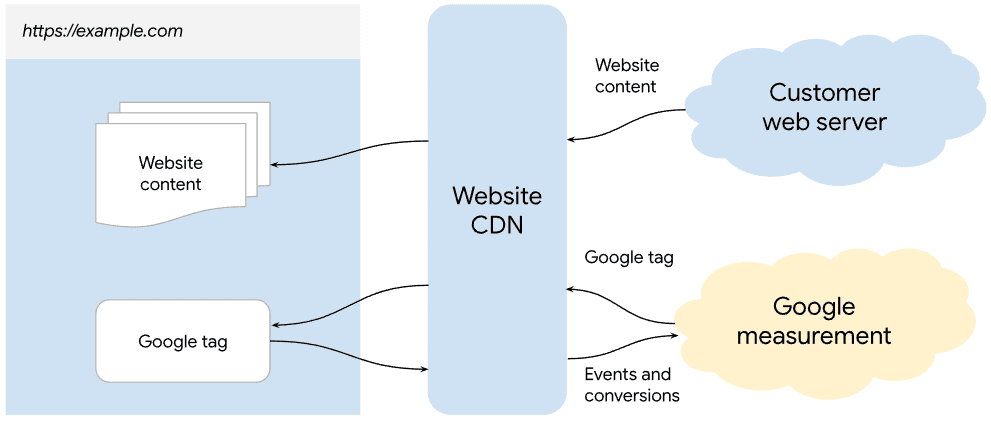
Configuration of the GTG
You can find the official configuration instructions for the Google Tag Gateway at the following link:
https://developers.google.com/tag-platform/tag-manager/gateway/setup-guide.md
There are different ways in which the GTG can be used. From simple variants such as integration with CDN providers such as Cloudflare and Akamai (Google is continuously expanding the list) to self-hosting are explained in Google’s official documentation.
However, Google Advanced Consent Mode must first be used as the basis for using the GTG, and default settings for consent and data transfer must be configured.
For GTG implementations, Google recommends the use of Unified Tagging and Advanced Consent Mode, as this architecture is compatible with both automatic and manually controlled GTG deployments and enables consistent consent processing.
GTG changes the technical delivery of the tags – making the order of script execution more critical than before. This is why Google emphasizes:
- Set consent defaults early
- Control consent centrally
- Tags controlled loading
- and use Advanced Consent Mode if possible.
The connection between GTG and Consent Mode
When using the GTG, Google Analytics or the Google Tag Manager can be automatically injected into the page by the CDN operator(e.g. when using one-click CDN injection), it is important to configure the default consent settings.
For GTG implementations, Google recommends the use of U+C (Unified Tagging and Advanced Consent Mode). This solution is compatible with both automatic and manually set up GTG setups and enables reliable processing of consent signals.
Configuration: Default settings for consent
This setting is a security mechanism that ensures that only the consent status and pings without cookies are sent to Google before end users interact with your consent banner.
To do this, the desired property can be specified under Configuration -> Settings (click on “Show more” if necessary). These correspond to the “Default” value of the Consent Mode.

We recommend the following setting for website operators within the EU:
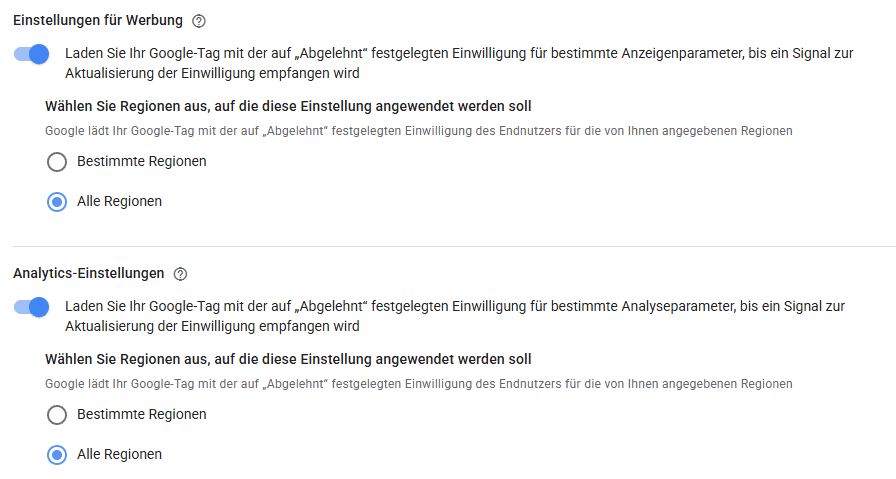
This ensures that all consent signals are set to denied by default before the Google Scripts are loaded.
Configuration: Settings for data transmission (Data Transmission Controls)
This setting allows you to customize the amount and type of data transmitted by your Google tags before Google receives consent signals from end users

The following settings can be made for this purpose:
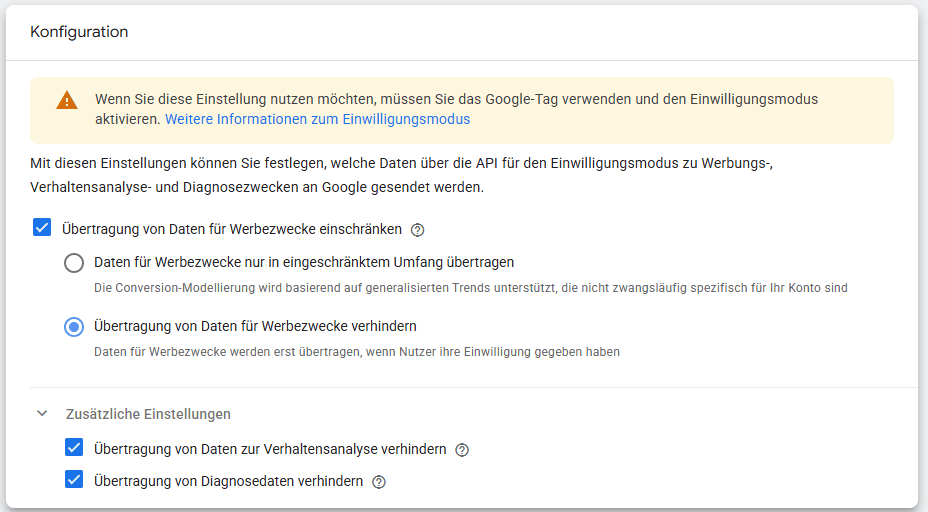
Set these settings according to the GDPR requirements of your country. For website operators within the EU, we recommend the settings shown.
Why is it important to set these default consent settings?
When using Consent Mode, it is important or mandatory for the correct technical implementation that there is a “default” value for the consent settings before the tags are loaded.
If the tags are injected by the CDN, this happens at a point in time before our legal web CMP is loaded. This means we cannot set these default settings in time. Possible signals would be sent to Google without the user’s consent. To avoid this, the default settings for consent must be set.
Using the GTG with the legal web CMP/Cookie Popup
Configuration of the respective service
If the Google tags are automatically injected (e.g. via Cloudflare), the scripts must no longer be stored in the legal web configuration, as they would otherwise be included twice. Leave the field for the script empty, or add a console.log(”gtag loaded); so that you want feedback.
You are welcome to select other options as required.
This concerns the Google services under “Analysis/Statistics”, “Profiling/Marketing” and the Google Tag Manager.
However, it is necessary to select the services so that the consent signals in the CMP/cookie pop-up are obtained/set correctly and that the texts in the data protection texts are displayed correctly.
A possible configuration could look like this:
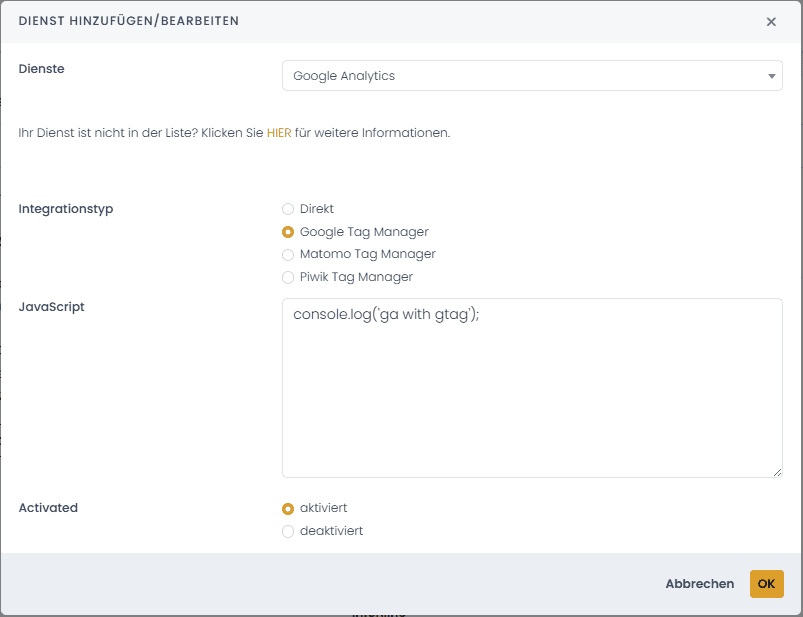
Configuration of the “source” of the GTG
If you integrate the GTG via Cloudflare or Akamai, you must also select these CDN providers under the CDN providers in the legal web CMP data protection settings. As the processing purposes of the CDN do not change, no further steps need to be taken.
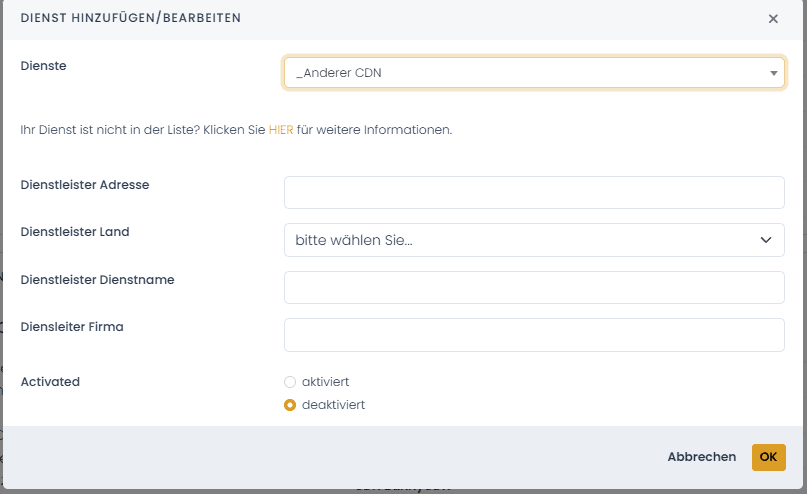
If you use your own CDN or a CDN from your Internet agency, you can add this as “_Other CDN” and add the necessary entries (see image).
How can I check whether the loading sequence is correct when using GTG?
To check the correct loading sequence, you must open the developer tools of your browser and check the messages in the console. There, the legal web CMP logs any error messages in connection with the Google tags and GTG.
If you find a message “Attention: Google tags are firing before the consent mode has been set”, you have made an error during integration/configuration.
Important: Google recommends the use of Unified Tagging and Advanced Consent Mode (U+C) for GTG implementations, as this approach is compatible with both automatically deployed and manually configured Google Tag Gateway (GTG) setups. As a result, consent signals can be processed reliably, regardless of whether GTG was implemented via one-click integration or manually with a controlled script sequence.
Causes of any problems and resources/help to solve them:
- The legal web CMP/Cookie popup is not configured correctly
- Google Advanced Consent Mode is not active for your property.
- legal web Support: Setting up Google Consent Mode
- Google documentation: Setting up Consent Mode on websites
- No default settings have been set for the consent settings.
- Check the settings in your property (see section “The connection between GTG and Consent Mode” in this article)
- Activate or check the default consent settings for your properties. This setting is a security mechanism that ensures that only the consent status and pings without cookies are sent to Google before end users interact with your consent banner.
- Activate or check the settings for data transmission (Data Transmission Controls) of your properties. With this setting, you can adjust the amount and type of data that is transmitted by your Google tags before consent signals from end users are received by Google.
- Manual setup of the GTG so that the loading sequence of the Google tags and default consent states can be controlled/monitored by the user.
If there is no message, this means that the integration and use of Google Tags including Consent Mode and GTG is configured correctly.
Our CMP/Cookie Popup offers a function for recognizing the correct loading sequence. There are 3 ways to call up this function:
- via parameter“lwDebugGoogleTagmanager” at the end of the url
When loading, the system automatically checks whether the order is correct. The result is displayed in the browser console. In the event of errors or problems, follow the instructions in the output. - via the developer console with the command“window.lwShowGoogleTagDebugLog();“
By calling this command, the loading sequence is checked manually. The result is displayed in the browser console. In the event of errors or problems, follow the instructions in the output. - Manual inspection of the dataLayer object (explained below)
If you still want to check the order in which the consent settings were set, you can also do this via the browser’s developer tools.
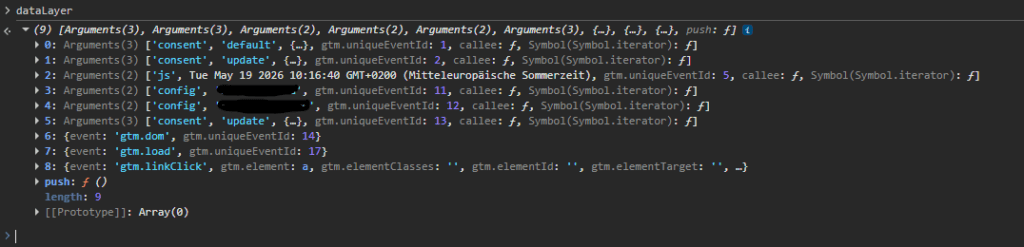
Enter the word “dataLayer” in the console and press Enter.
The content of the DataLayer object is now displayed. There must be no entry beginning with “gtm” before “consent” with “default”, after that there can be any number of “consent” with “update”, or events with “gtm”.
The following image contains a correct example extract:
Support for problems with the device
If you have technical problems with the setup, you can send an email to [email protected] with your problem description (text, screenshot). Please also mention the domain with your request.

